
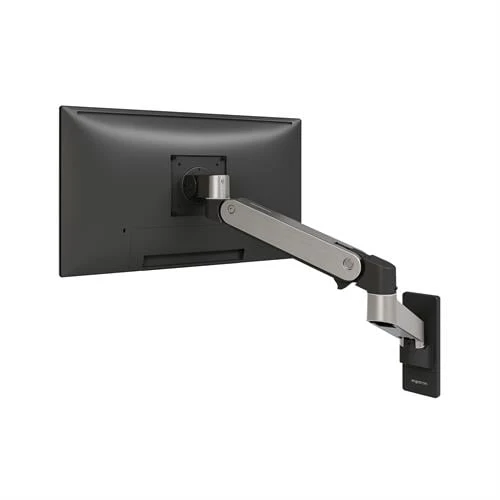
Monitor Arm Compatibility: Single vs. Dual Monitor Arms Explained
Discover the key differences between single and dual monitor arms, including mounting options, weight capacities, and ergonomic benefits.

An office chair can feel perfectly comfortable when you first sit down but become increasingly uncomfortable as the workday continues. After a few hours, you may notice pressure beneath your thighs, stiffness in your lower back, tension across your shoulders, or the constant need to reposition yourself.
This does not necessarily mean the chair is poorly made. It may be the wrong size for your body, improperly adjusted, incompatible with your desk, or unable to support the way you work. Even a chair marketed as ergonomic can become uncomfortable when its dimensions and adjustment ranges do not match the person using it.
Active Ergonomics® has used insights from more than 8,000 professional ergonomic assessments to select office chairs for different body sizes and working needs. That experience has shown that lasting comfort depends on fit, adjustability, movement, and the relationship between the chair and the complete workstation.
Here are some of the most common reasons an office chair begins to feel uncomfortable after several hours.
One of the most common causes of chair discomfort is a basic mismatch between the dimensions of the chair and the dimensions of the user.
Many office chairs are designed around an assumed “average” body size. However, people of the same height can have different leg lengths, torso lengths, hip widths, shoulder widths, and weight distributions. A chair that feels supportive to one employee may feel restrictive or oversized to another.
A chair that is too large may have:
A chair that is too small may have:
Active Ergonomics® offers office chairs sized for different body types, including small or petite, regular, large, XL, and big-and-tall configurations. Starting with the correct general size category can prevent many of the fit problems that become more noticeable as the day continues.
Seat depth is the distance between the front edge of the seat and the backrest. If the seat is too deep for your legs, you may be unable to sit against the backrest without feeling pressure behind your knees.
At first, you may not notice the problem. As time passes, however, you may begin sliding toward the front of the seat. This relieves the pressure behind the knees but removes support from your back. You may then lean forward, round your lower back, or brace yourself against the desk.
An adjustable seat slider can help, but only if its range is appropriate for your body. If the seat remains too deep at its shortest setting, the chair may simply be too large.
With your back supported, there should generally be a small amount of clearance between the seat edge and the backs of your knees. Your thighs should still receive adequate support without the seat pressing into the knee area.
A seat that is too shallow may leave a large portion of the thighs unsupported. This can make the chair feel undersized and concentrate pressure over a smaller area.
A narrow seat can create pressure along the hips and outer thighs. The chair may feel acceptable during a brief trial, but that pressure can become more noticeable after extended sitting. Narrow spacing between the armrests can make the problem worse.
For an appropriate fit, the seat should support the thighs and accommodate the widest part of the hips without feeling restrictive. There should also be enough room for small position changes.
Do not choose a chair based only on its weight capacity. Capacity indicates how much weight the chair is designed to support, but it does not describe the usable seat width, seat depth, armrest spacing, or backrest dimensions.
If your feet cannot rest comfortably on the floor, the front edge of the seat may place more pressure beneath your thighs. You may also begin tucking your feet beneath the chair, resting them on the chair base, or sliding forward to reach the floor.
These positions can make the chair increasingly uncomfortable because your lower body lacks a stable foundation.
Before lowering the chair, consider the height of your desk. If lowering the seat causes you to reach upward toward the keyboard and mouse, you may trade lower-body discomfort for tension in your shoulders, arms, or wrists.
In that situation, the chair may need to remain elevated while a footrest supports the feet. Another option may be lowering the keyboard and mouse with an appropriate keyboard tray.
ActErgo’s chair-adjustment guidance explains how seat height, foot support, arm position, and work-surface height interact.
Lumbar support is often treated as a standard feature, but its shape and placement matter. A pronounced lumbar curve is not automatically more ergonomic, and a backrest cannot provide effective support when its contour does not align with your body.
If the lumbar support is too high, too low, too firm, or too shallow, you may find yourself sitting away from the backrest. A backrest that is too wide may restrict arm movement during certain tasks, while one that is too narrow may not provide the support you prefer.
Look for adjustments such as:
The backrest should help support your working posture without forcing you into one rigid position. ActErgo’s information about neutral body positioning can help you understand how the chair should support the body during computer work.
Armrests can contribute to discomfort even when the seat and backrest fit correctly.
If the armrests are too high, they may push your shoulders upward. If they are too low, you may lean toward one side to reach them. If they are too wide, your elbows may move away from your body. Armrests that are too long can prevent the chair from getting close to the desk.
As the day continues, these small positioning problems can contribute to shoulder, neck, or upper-back fatigue.
Adjustable armrests may move in several directions, including height, width, depth, and pivot. Your shoulders should remain relaxed, and the armrests should not prevent you from reaching the keyboard and mouse comfortably.
In some setups, the armrests may need to be lowered or moved out of the way during active computer work. Their usefulness depends on your body dimensions, desk, and primary tasks.
Even a properly fitted chair can become uncomfortable if you remain in one position for hours. The body benefits from movement and changes in posture throughout the day.
Many employees lock their chairs in a rigid upright position because they believe this represents good posture. Others never adjust the recline tension, causing the backrest to feel either too stiff or too loose.
A functional recline mechanism should allow you to lean back while remaining supported. Changing the angle of the chair periodically can shift pressure and provide a break from forward-focused computer work.
If you are smaller, you may need lighter recline tension so the backrest responds without requiring excessive force. A larger user may need firmer tension for controlled support. A chair with a fixed or poorly matched mechanism may become tiring because it does not move naturally with you.
A heavily padded chair can feel comfortable during a short test because the seat initially feels soft. Over several hours, however, excessive softness may allow you to sink into the cushion, making movement more difficult and reducing stable support.
A very firm or worn seat can produce a different problem by concentrating pressure in particular areas. Older foam may appear normal but no longer recover or distribute weight effectively.
Materials also affect the experience. Mesh seating may provide airflow and flexible support, while contoured upholstered seating offers a different feel. Neither is universally better. The quality, tension, shape, and fit of the material matter more than the category alone.
The best seat should distribute pressure while providing enough stability for you to reposition yourself easily.
Sometimes the chair is blamed for discomfort that actually originates elsewhere in the workstation.
If the desk is too high, you may elevate your chair until your arms can reach the keyboard. That can leave your feet unsupported. If the desk is too low, your knees may feel crowded or you may lower the chair into an ineffective position.
A keyboard or mouse positioned too far away may cause you to lean forward and stop using the backrest. Monitors that are too distant can create the same response. Armrests that collide with the desk may prevent the chair from moving into a useful working position.
Active Ergonomics® provides ergonomic solutions for modern offices that account for the relationship between chairs, desks, monitor arms, keyboard trays, footrests, and other workstation components.
Before replacing the chair, observe whether you can use its backrest while still reaching everything needed for your work.
A chair with several adjustable features can still feel uncomfortable if those features remain in their factory positions.
Common adjustment problems include:
Try changing one feature at a time so you can identify its effect. If every control is changed simultaneously, it becomes difficult to determine which adjustment helped.
After finding a supportive starting position, continue to move throughout the day. A good setup should accommodate movement rather than requiring you to hold a single pose.
Office chairs do not last indefinitely. Foam compresses, mesh loses tension, cylinders stop maintaining height, casters become difficult to move, and adjustment mechanisms can wear down.
If a chair gradually became uncomfortable after years of use, inspect it for signs such as:
A worn chair may not provide consistent support even if it originally fit well. Depending on its condition, a component may be replaceable, or the chair may need to be replaced.
If your office chair becomes uncomfortable after a few hours, the problem may involve its size, seat dimensions, backrest, armrests, cushioning, adjustments, or compatibility with your workstation. Prolonged static sitting can also make an otherwise appropriate position feel uncomfortable, which is why movement remains essential.
Active Ergonomics® uses decades of real-world ergonomic data to identify chairs and accessories that support different body sizes and working needs. Instead of relying on an “ergonomic” label or a brief comfort test, compare the chair’s actual measurements and adjustment ranges with your body and workstation.
Explore ActErgo’s ergonomic office chair collection or contact Active Ergonomics® for help selecting a chair and configuration designed for longer-lasting support.
Discover the key differences between single and dual monitor arms, including mounting options, weight capacities, and ergonomic benefits.
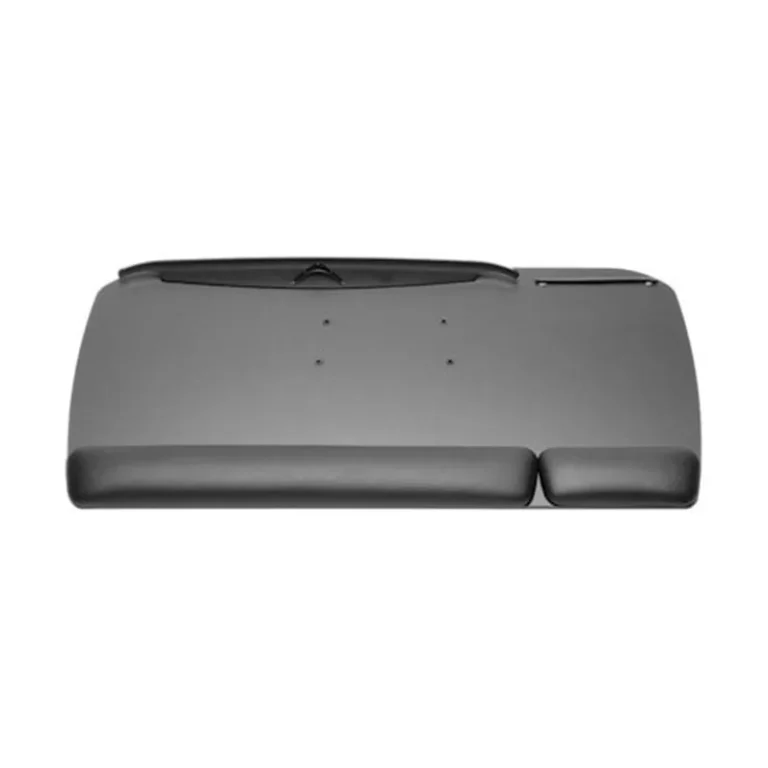
Discover the benefits of adjustable keyboard trays and how they can enhance ergonomic posture and reduce strain in office workstations.
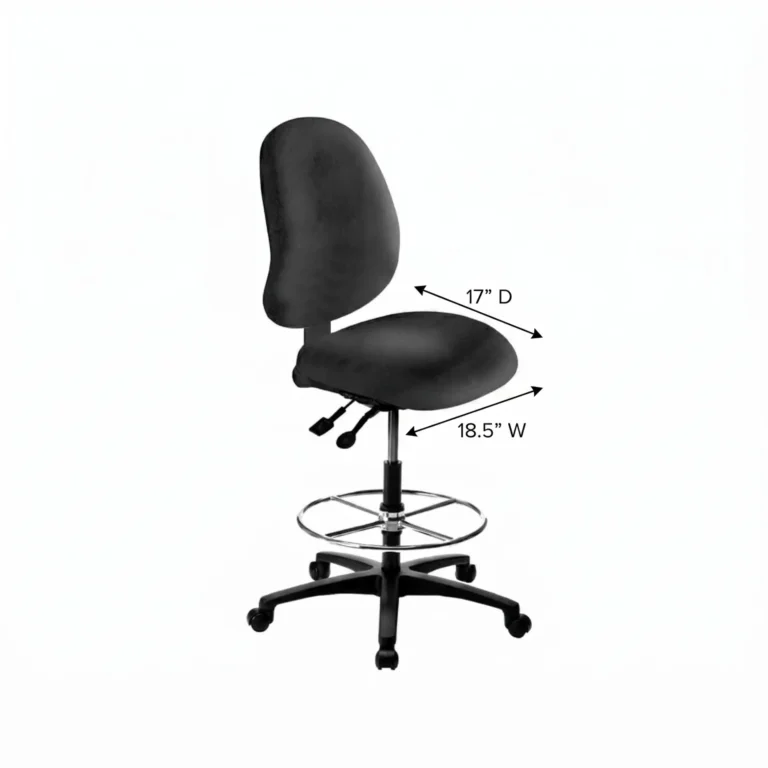
Discover how to choose the right lab stool with considerations for height, footring, and backrest to enhance comfort and productivity in your lab.
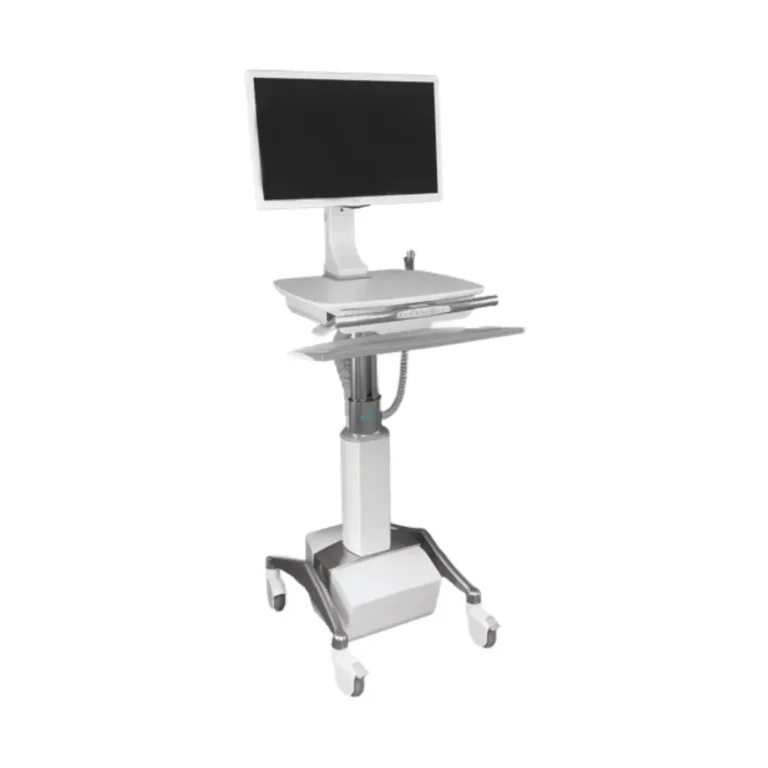
Discover how modular ergonomic furniture adapts office layouts for flexibility and hygiene, promoting social distancing and clean environments.

Choosing the right cleanroom furniture materials is essential for hygiene and compliance. Learn how material properties affect cleanroom efficiency.
The word “ergonomic” appears on countless office chairs, from inexpensive